
Free · Optional
MSFS 2024 toolbar panel: install and use
Keep your SimBrief plan, the voice commands for your aircraft and your last landing inside the simulator. Here’s how to install the optional FlightFabric panel from Settings and open it from the MSFS 2024 toolbar.
What you need
Install FlightFabric on the Windows PC that runs Microsoft Flight Simulator 2024. The panel is installed into the MSFS 2024 Community folder by the desktop app, so the app must run on the simulator PC; the browser view on a phone or tablet cannot install it. FlightFabric looks for the Microsoft Store and Steam editions of MSFS 2024. MSFS 2020 is not supported.
The panel is optional. Everything it shows is also available in the desktop app and on a connected phone or tablet, so you lose nothing by skipping it.
Install the panel in four steps
Close MSFS 2024
The simulator reads Community packages when it starts, so close it before you install, update or remove the panel. FlightFabric reminds you of this in the settings section.
Open toolbar setup
In FlightFabric, open Settings > Devices, then find MSFS 2024 toolbar panel. You can also reopen Setup in the desktop menu and follow its toolbar step. FlightFabric lists each MSFS 2024 installation it found on this PC with the Community folder it will use and the current status, Not installed the first time.
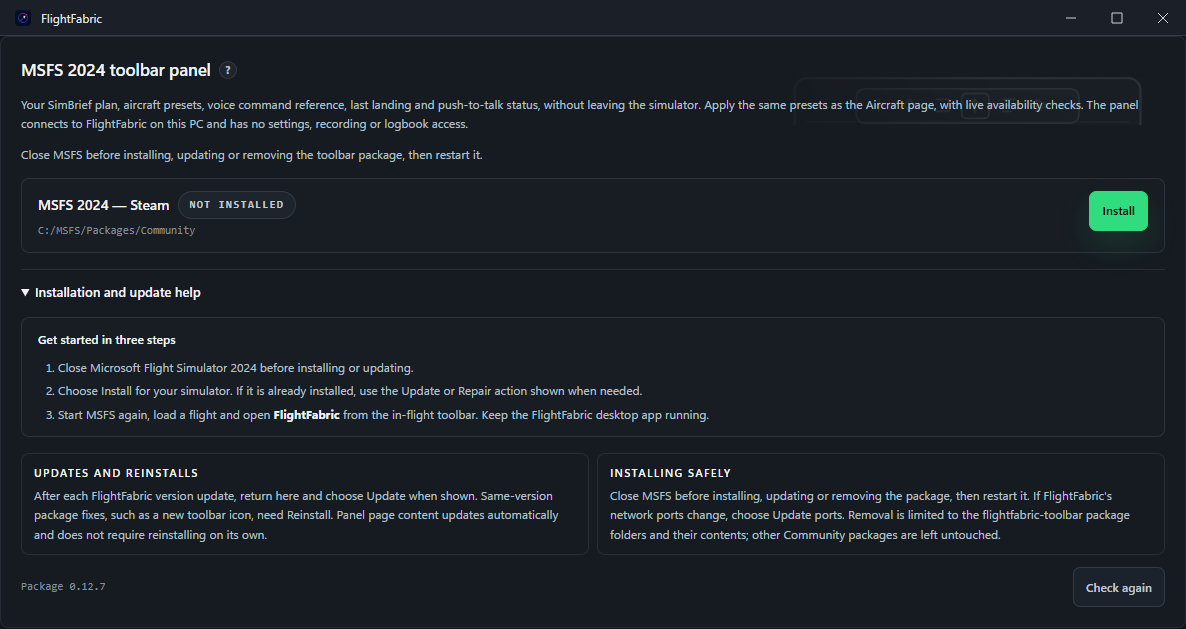
Choose Install beside your MSFS 2024 installation · FlightFabric 0.12.7 · Sample data Click Install
Click Install next to your MSFS 2024 installation. FlightFabric copies the
flightfabric-toolbarpackage into that Community folder and configures it with the app’s network ports. The row changes to Installed with the package version, and a message asks you to restart the simulator.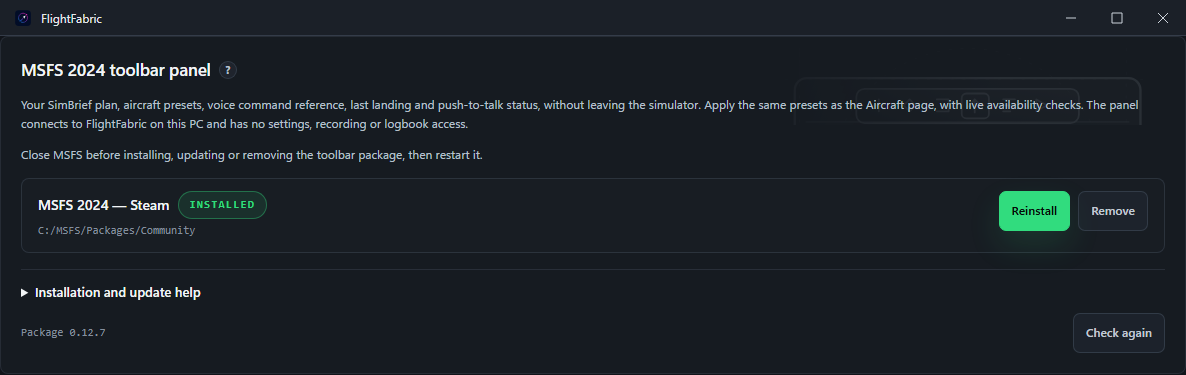
The installed package and available actions · FlightFabric 0.12.7 · Sample data Start MSFS 2024 and open the panel
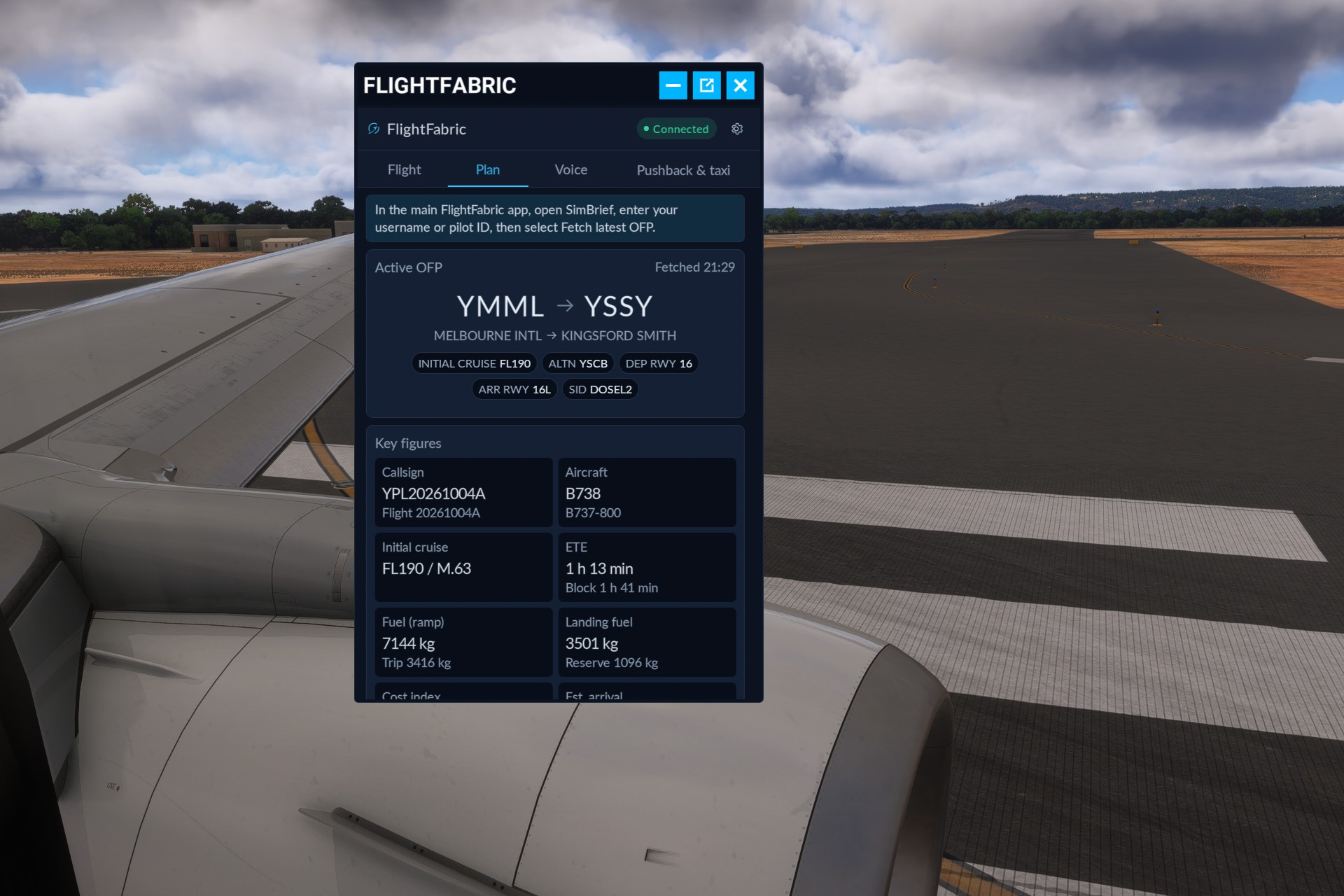
Start the simulator with FlightFabric still running and load a flight. Move the pointer to the top of the screen to show the in-flight toolbar, then select the FlightFabric button. The panel opens as a window you can drag and resize like any other toolbar panel.
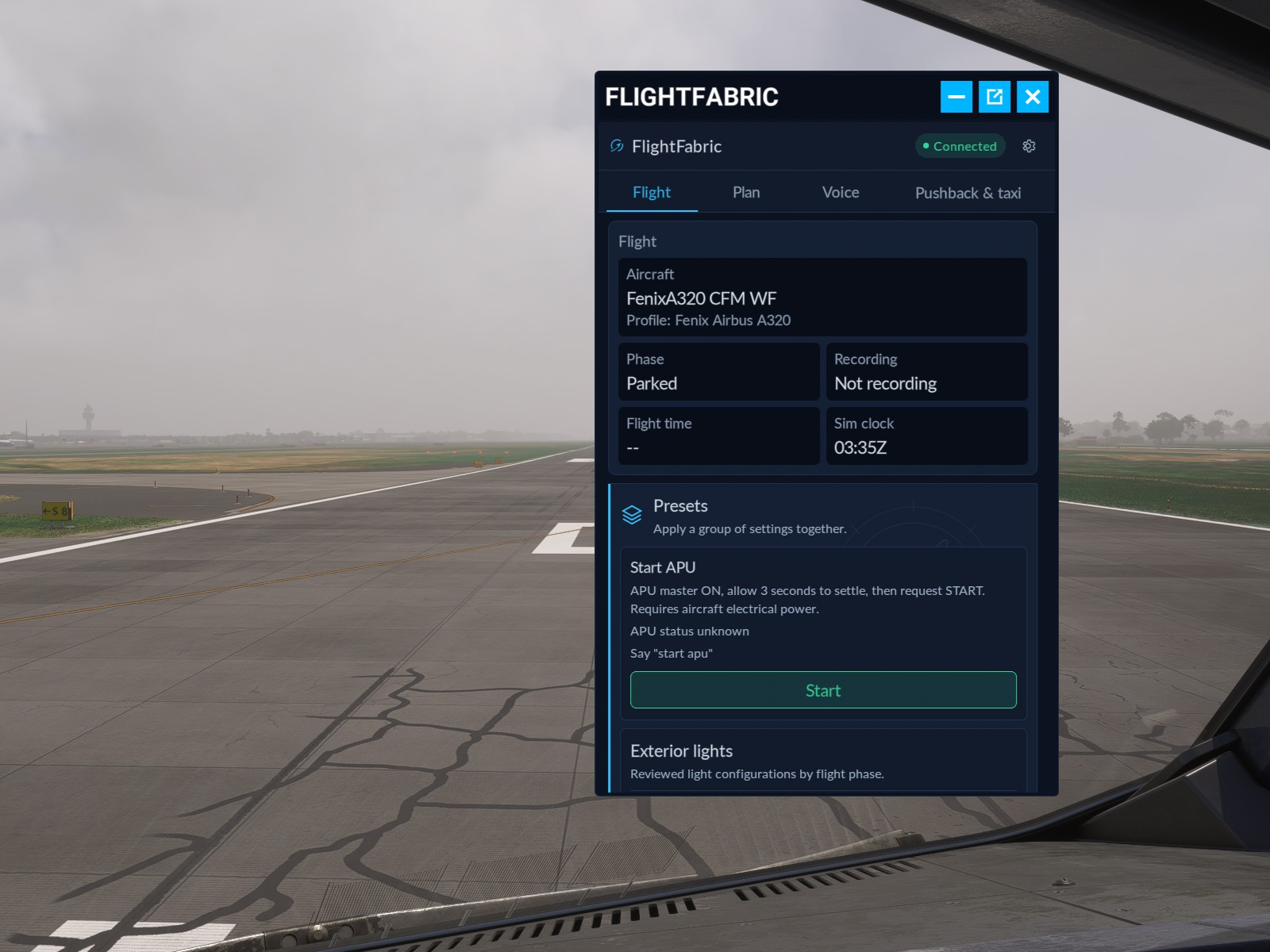
Flight information and aircraft presets in the Fenix A320 cockpit · MSFS 2024
Using the panel in the cockpit
The panel has four tabs. It updates live while FlightFabric runs and remembers your layout choices between flights.
- Plan shows the SimBrief plan loaded on FlightFabric’s SimBrief tab: departure and arrival, route, key figures, and collapsible weather, fuel and weights, times, performance, navlog and ICAO plan sections.
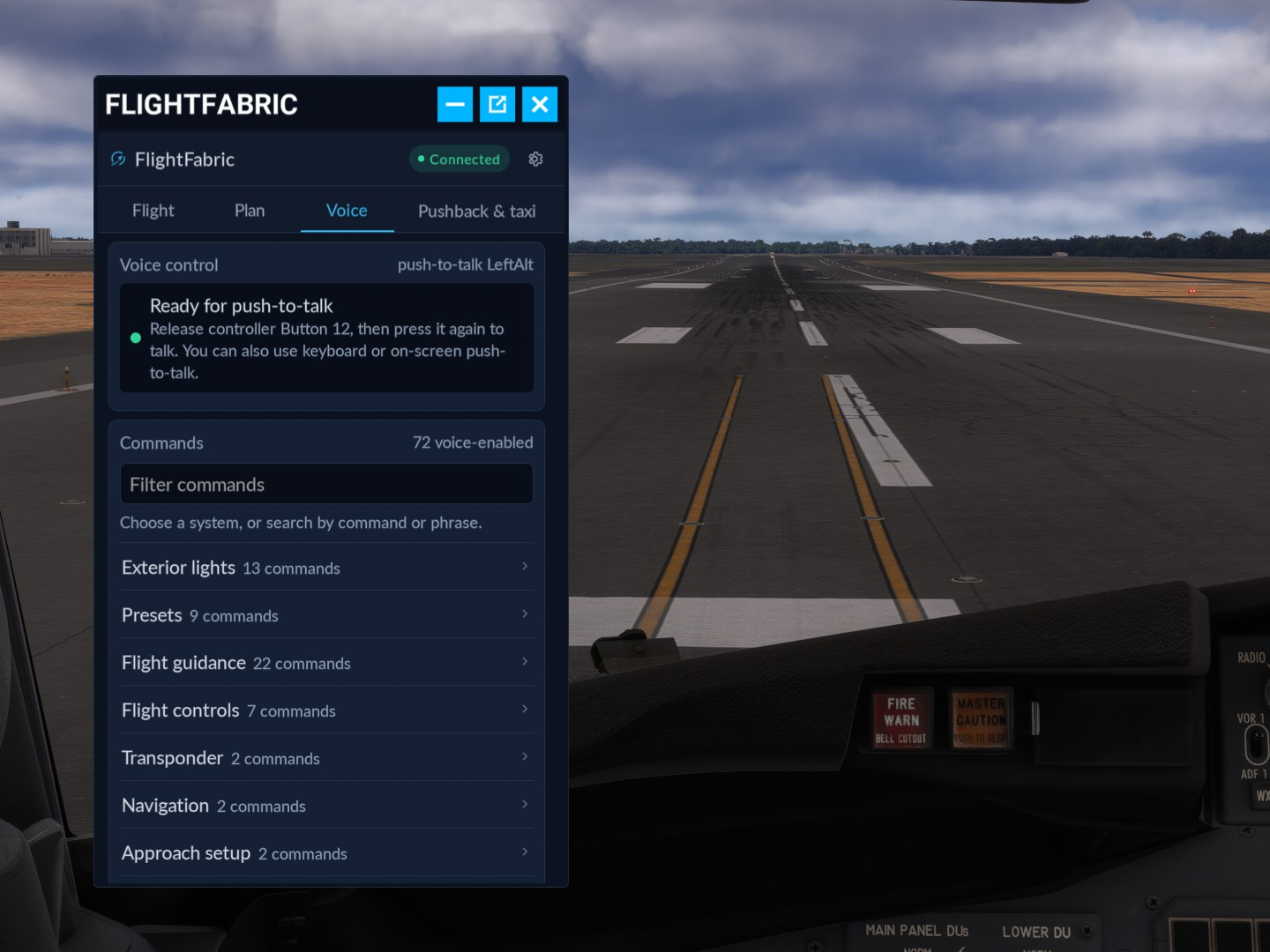
- Voice shows the live push-to-talk status and a searchable list of voice commands for the loaded aircraft, grouped by system. Use your configured push-to-talk input to speak commands. See the voice-control guide.
- Flight shows the aircraft, flight phase, recording status, flight time, simulator clock, your last landing and recent cautions.
- Pushback & taxi offers experimental automatic pushback towards your departure taxi route, followed by manual taxi guidance. You can also choose an arrival stand and follow the route yourself.
The settings sheet inside the panel sets the theme, text size, density, UTC or local times, the weight unit and which tab opens first. These choices are stored by the panel itself and do not change the desktop app.
Automatic pushback
FlightFabric can move the aircraft for you during pushback: reverse, turn to face the onward taxi route for your departure runway, then stop. The airport’s taxiways and your selected runway determine the direction, which you can check before starting.
Choose your departure
Open the Pushback & taxi tab. Your departure airport and runway come from the loaded SimBrief plan, or you can enter them yourself. Choose Runway as the destination to preview departure pushback.
Check the path and start pushback
Review the reversing path and final nose direction. With the aircraft stationary on the ground, release the parking brake and choose Start pushback. Entering an airport or selecting Show taxi route does not move the aircraft.
Let it stop, then taxi manually
FlightFabric reverses and turns the aircraft, then stops automatically. Use Stop pushback to end the manoeuvre early. After pushback completes, follow the displayed taxi route yourself to the runway holding point.
The same feature is available under Pushback & taxi on the main app’s Aircraft page. Choose Start pushback when you are ready; the action always requires your explicit start.
Updates, reinstalls and removal
The installed package follows the FlightFabric version. Return to Settings → MSFS 2024 toolbar panel after an app update and act on the status shown. Close MSFS first in every case, then start it again afterwards.
- Update available — a newer FlightFabric ships a newer package. Choose Update.
- Ports changed — FlightFabric’s network ports were changed in Settings after the package was installed. Choose Update ports.
- Needs repair — the installed package is incomplete or was altered. Choose Repair.
- Installed — nothing to do. Reinstall is only needed for same-version fixes, such as a new toolbar icon; the page content inside the panel updates with the app on its own.
- Remove deletes the
flightfabric-toolbarpackage folders that FlightFabric created, including anything added inside them, and leaves every other Community package untouched. FlightFabric never removes a folder it did not create.
Use Check again to refresh the status after changing the Community folder outside the app.
If the panel is not working
No MSFS 2024 installation was found
FlightFabric checks the Microsoft Store and Steam locations for MSFS 2024 on this PC. Make sure you are using the desktop app on the simulator PC, not the browser view on another device, and that MSFS 2024 has been started at least once so its user folders exist.
The FlightFabric button is missing from the toolbar
Confirm the row shows Installed, and that you restarted MSFS 2024 after installing. Load into a flight; the toolbar is not available on the main menu. If the status shows Needs repair or Update available, close MSFS, act on it and restart.
The panel says “Connecting to FlightFabric”
Start FlightFabric on the same PC. The panel reconnects by itself, usually within a few seconds; after a long outage it can take up to 30 seconds. If you recently changed FlightFabric’s ports, the settings row reports Ports changed; choose Update ports with MSFS closed.
The panel asks for a reinstall
The installed package no longer matches the running app. Close MSFS, open Settings → MSFS 2024 toolbar panel and choose Reinstall or Update, whichever is shown.
“Folder in use by another add-on”
A package with the same folder name exists in your Community folder but was not created by FlightFabric. FlightFabric will not touch it. Move or rename that folder with MSFS closed, then choose Check again.
The simulator became unstable
If you see problems in the simulator while the panel is installed, close MSFS, choose Remove in the settings section and report what happened so it can be investigated.
What the panel can access
The panel connects to FlightFabric on the same PC. The Flight tab has a Presets section matching the active aircraft’s Aircraft page. You can apply supported presets, including exterior lights, APU start and brightness, with descriptions and live availability checks. The Pushback & taxi tab can also start and stop experimental pushback after you review the preview. Entered targets stay separate from observed aircraft state, and the panel shows whether an action completed or needs checking in the cockpit. It has no access to change app settings or read recordings and your logbook. Earlier releases provide a read-only view.
Nothing in the panel talks to the internet on its own. The SimBrief plan it shows is the one FlightFabric already fetched on your request.