

Free · Windows · MSFS 2024
Control your airliner
by voice or tablet.
Set headings, tune radios and operate cockpit controls by voice or from your phone or tablet.
Then look back at your approach and landing, with your flights saved in a logbook.
No account required.
Explore supported aircraft Unsigned installer: what to expectDemonstration: say “Set heading two seven zero” and the selected heading changes to 270 degrees. Or use aircraft controls on a phone or tablet, such as switching the taxi lights on. Voice input runs on your Windows PC.
See it in the cockpit · 35 seconds
Speak a command.
See the aircraft respond.
Course, heading, radio tuning and lights — watch FlightFabric put spoken commands into action in MSFS 2024.
Hold your talk button, speak, then release. Speech is processed on your PC. On-screen labels identify the commands shown; available controls depend on your aircraft.
Set up voice controlSee the app
A closer look at FlightFabric
Change a heading without hunting for the dial, keep your route on another screen, or look back at the events leading up to a landing. Here is how FlightFabric can help during a flight.
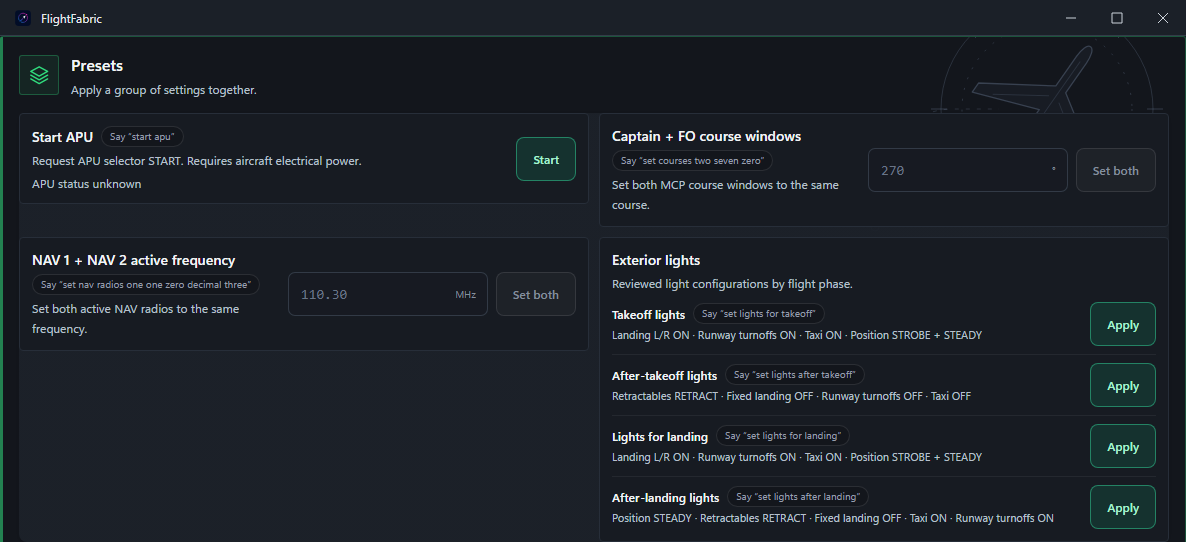
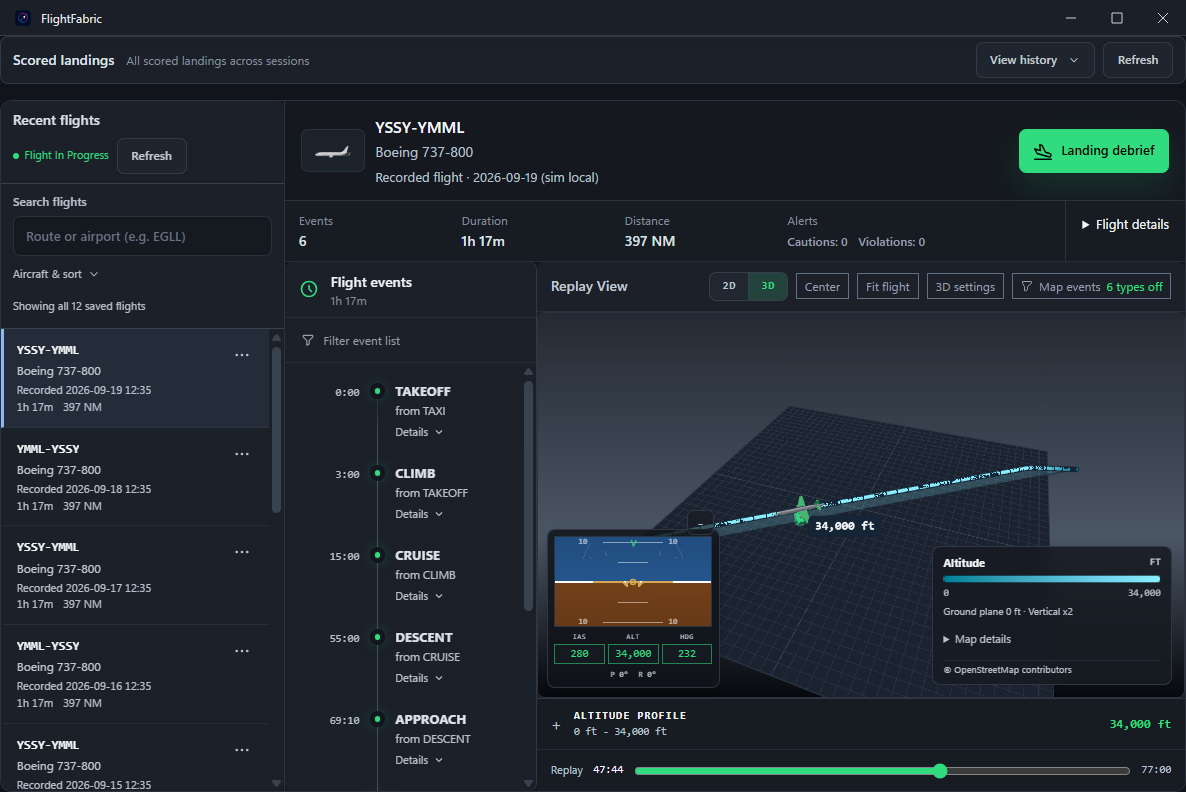
Phone, tablet or second computer
Keep useful controls beside you
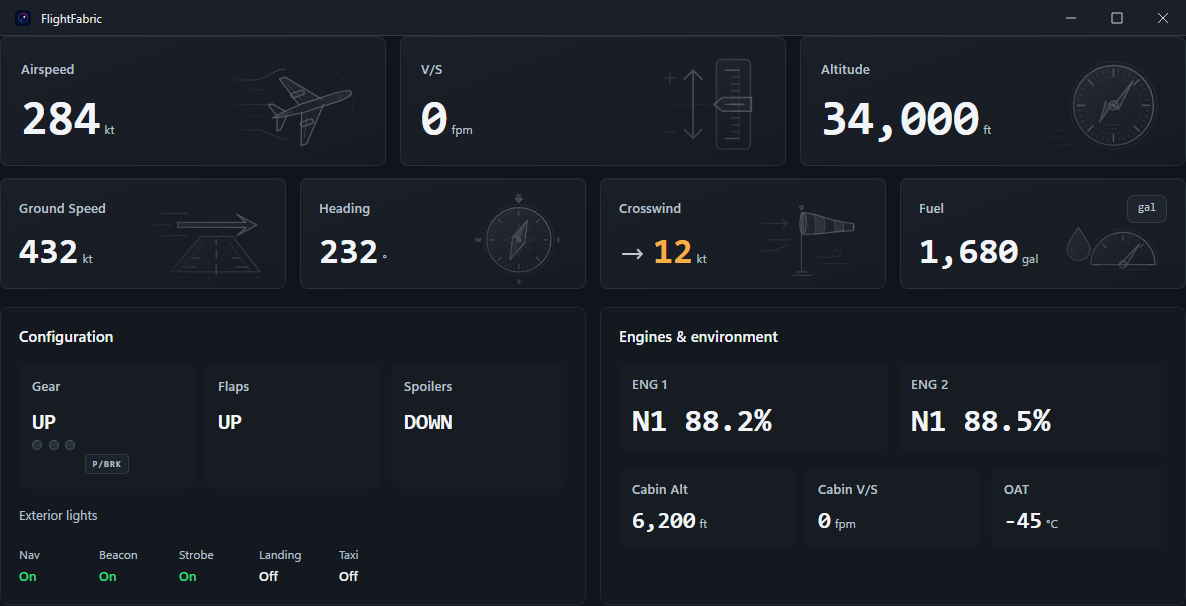
Leave the simulator on your main screen and open FlightFabric in a browser on another device. You can reach aircraft controls, follow the flight, check your SimBrief plan or browse recorded flights.
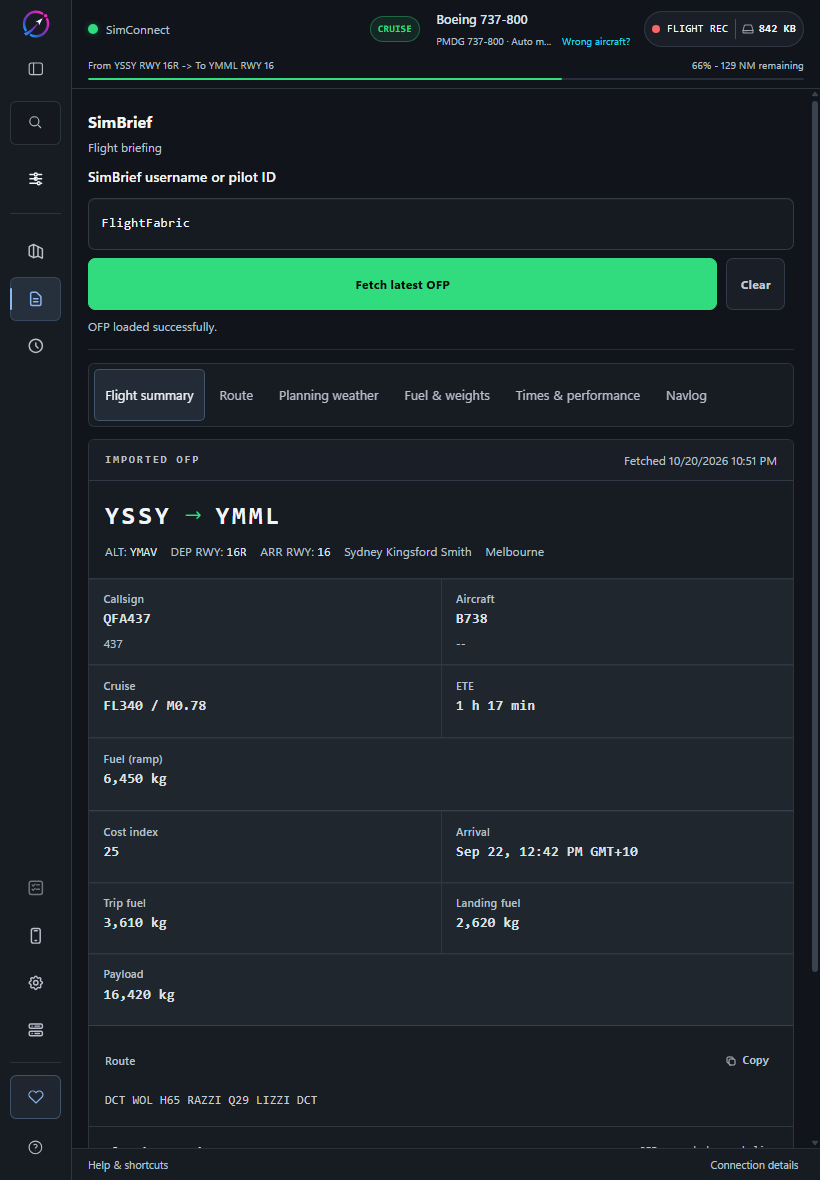
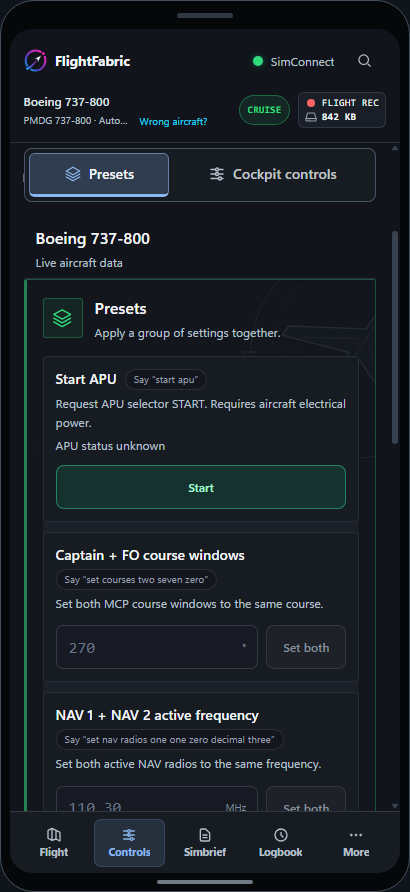
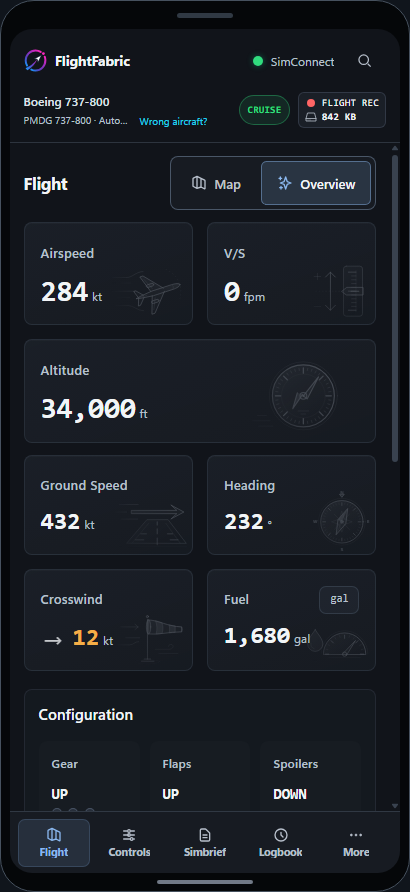
Install FlightFabric on your simulator PC, then choose Connect phone in the desktop menu for the QR code and connection instructions. Your other device needs to be on your trusted home network. Voice input stays on the Windows PC.
Inside the simulator
Or keep it in the cockpit
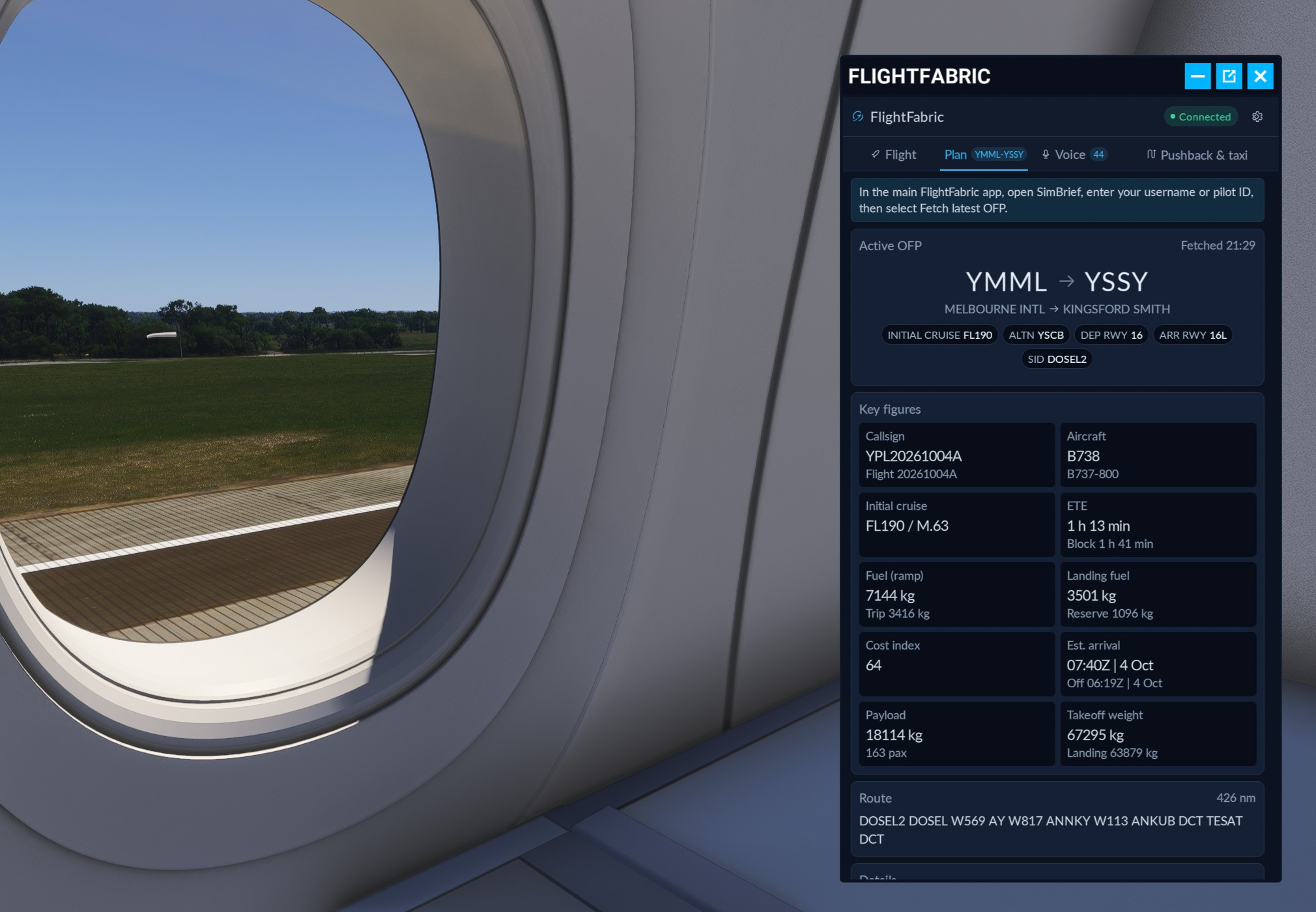
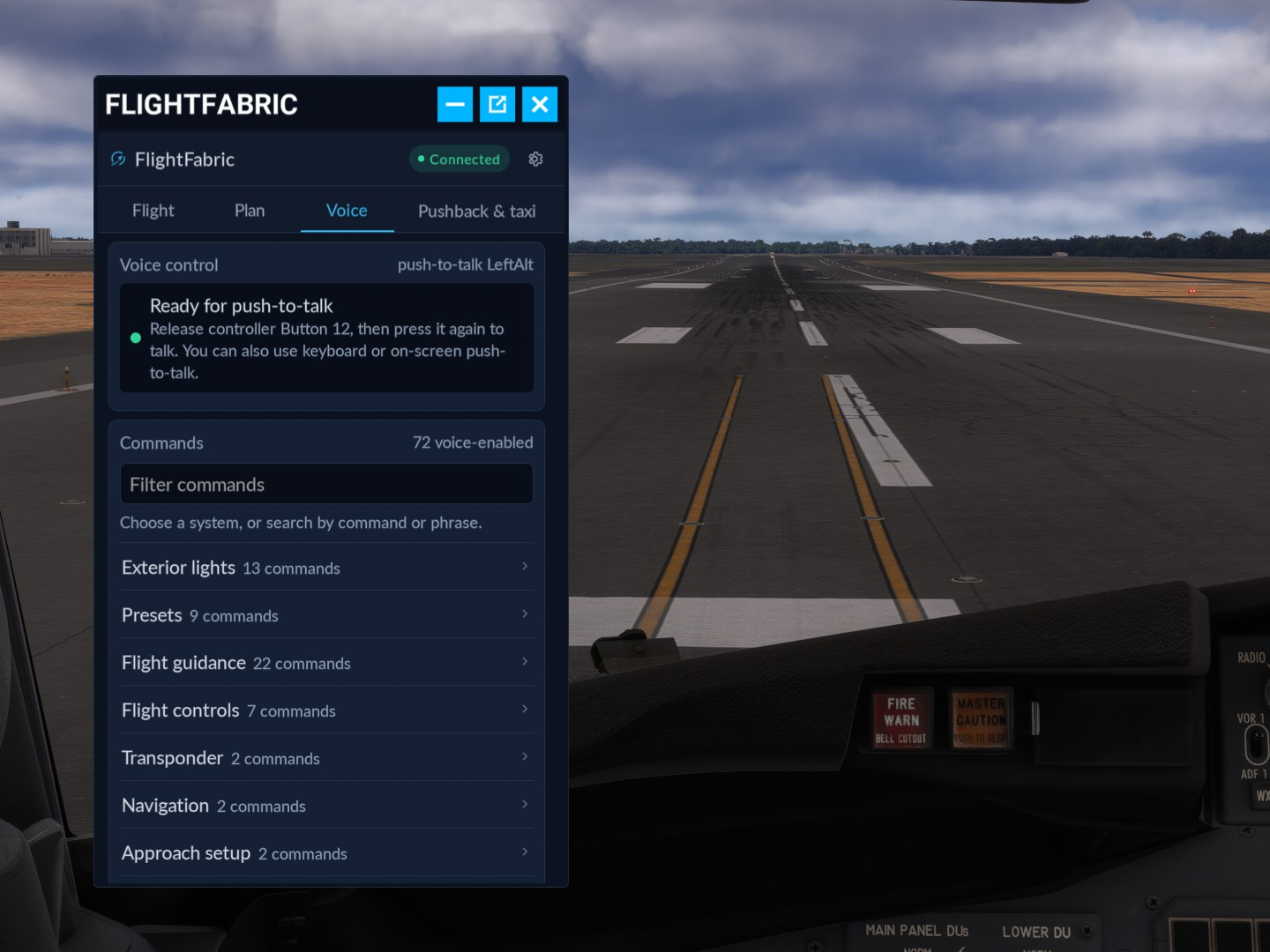
Install the optional FlightFabric panel from Settings and open it from the MSFS toolbar. Apply aircraft presets, check your SimBrief plan, find voice commands and see your last landing without leaving the flight.
After the flight
Look back at your approach and landing
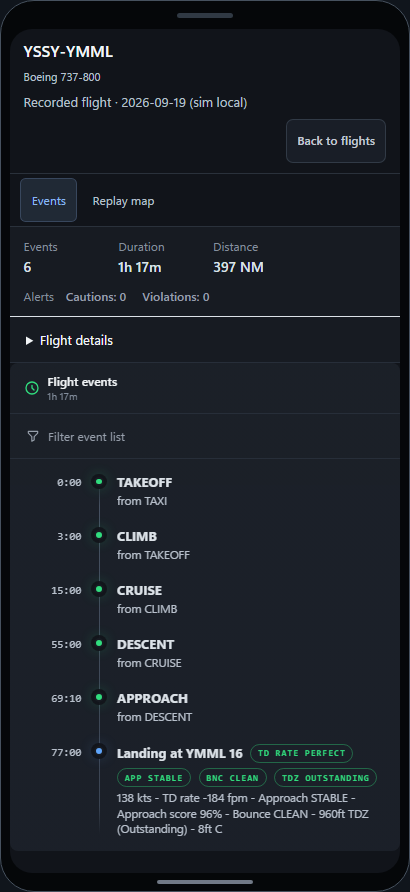
Open a recorded flight to see when the gear and flaps changed, how the approach developed and where you touched down. The timeline helps you find the moments you want to review.
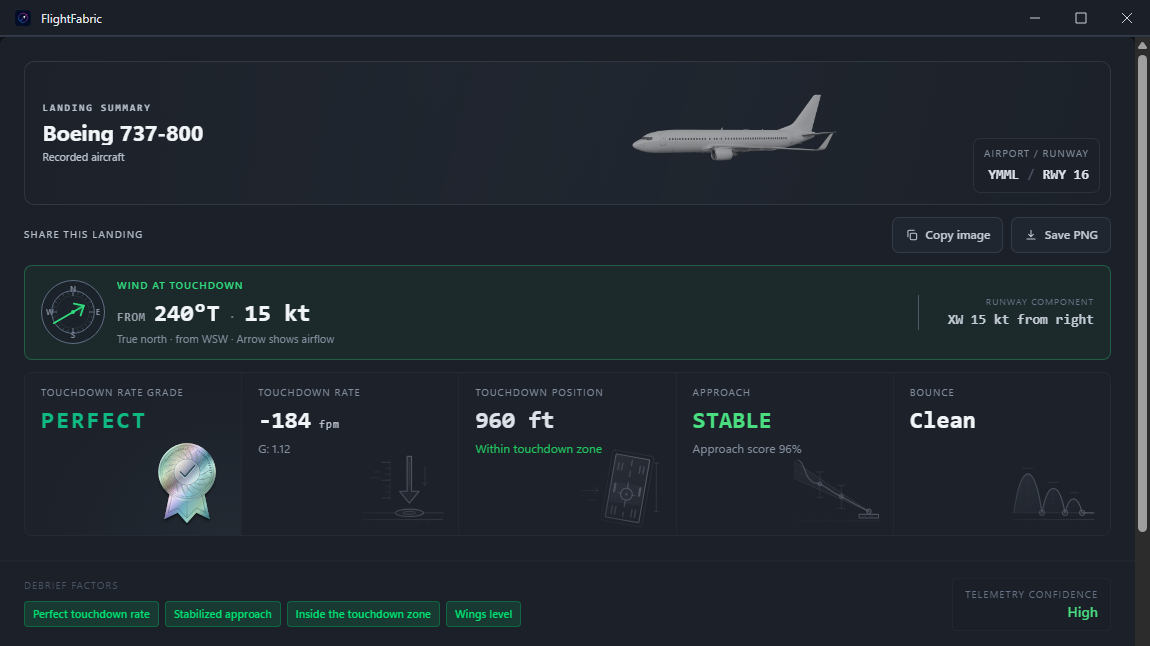
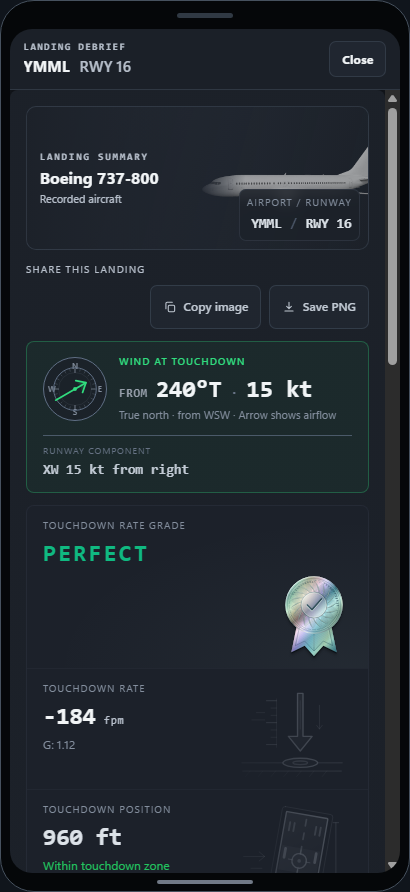
The landing debrief covers touchdown measurements, runway position and rollout as well as the approach. It explains the factors behind its assessment. The measurements available depend on your aircraft and the data recorded during the flight.
Aircraft support
Support for the aircraft you fly
Follow your cockpit with live aircraft data, with aircraft-specific controls and voice commands where available.
| Aircraft family | Support |
|---|---|
| FlyByWire A32NX | Alpha support |
| Fenix Airbus A32X | Alpha support |
| iniBuilds Airbus A350 | Alpha support |
| iniBuilds Airbus A380-800 RR Basic | Alpha support |
| PMDG Boeing 737 | Alpha support |
| PMDG Boeing 777 | Alpha support |
| TFDi Design MD-11 | Alpha support |
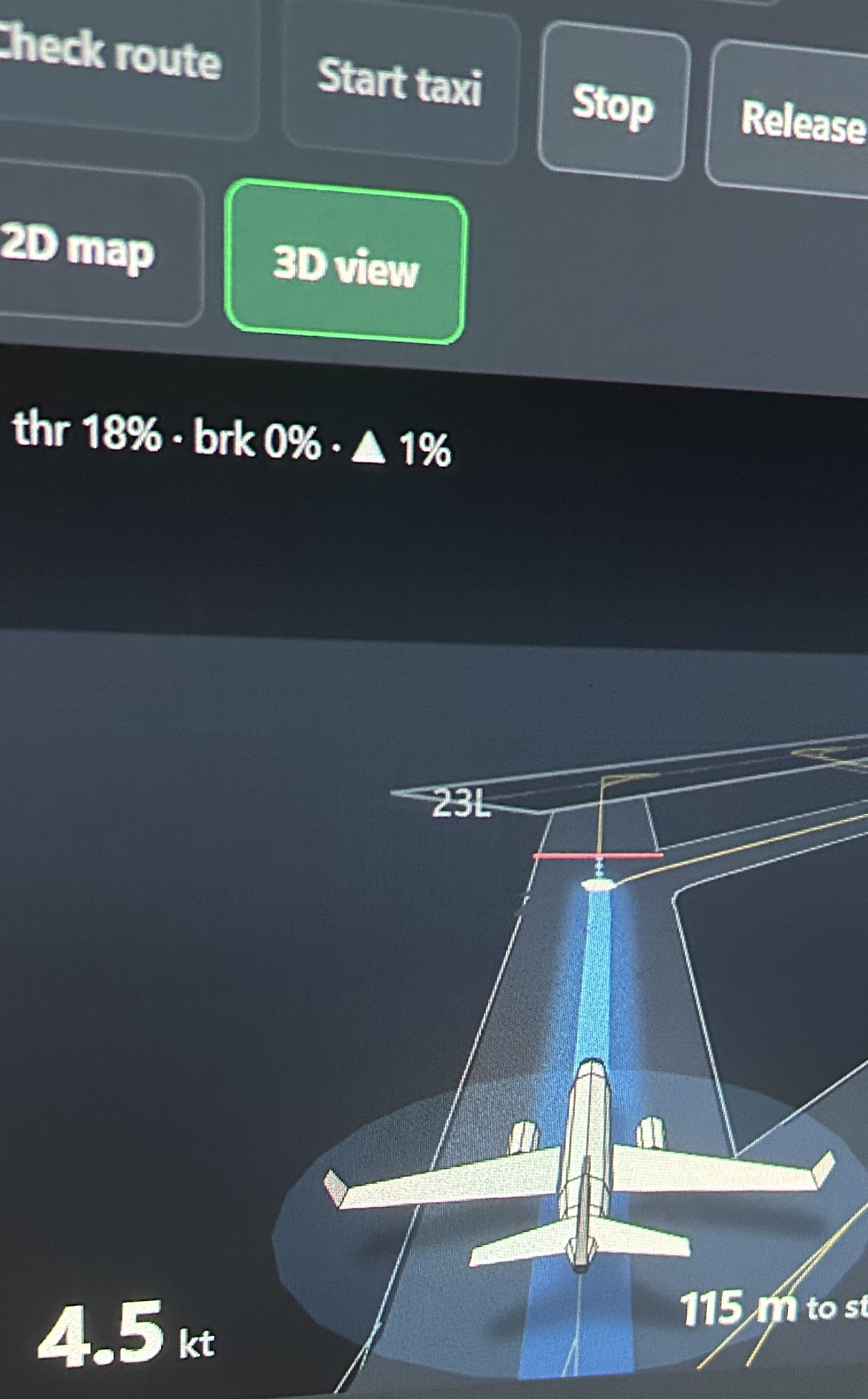
Explore aircraft support and available controls
MSFS 2024 and aircraft add-ons are separate products. Support is still developing, and not every command has been verified in a live simulator session. Check the app’s aircraft integration guide and command availability before use.
Free and open source
Try it on your next flight
Install FlightFabric on the Windows PC running MSFS 2024. No FlightFabric account or subscription is required.
Still in development. Expect bugs and incomplete aircraft support.
Installation help
What to expect during setup
Install FlightFabric on the Windows PC you use for MSFS 2024. Here is what you may see between downloading the installer and your first flight.
Download the Windows installer
Use Download for Windows on this site, then open the downloaded .exe file. You do not need GitHub’s Source code archives.
Check any Windows warning
The current alpha installer is unsigned, so Windows cannot verify its publisher. Expect a red “Windows protected your PC” screen or an “Unknown publisher” prompt the first time you open it. That is normal for a small unsigned app and is not a virus report; the wording and appearance vary with your Windows version and settings.
If SmartScreen says “Windows protected your PC”, select More info to inspect the file. Only if you downloaded it from the official link above and choose to trust it, select Run anyway, if that option is available.
If Windows blocks the app without that option, or reports a virus or other threat, stop. Do not turn off antivirus, SmartScreen or Smart App Control to install FlightFabric. Report the exact warning; on a managed PC, ask your administrator.
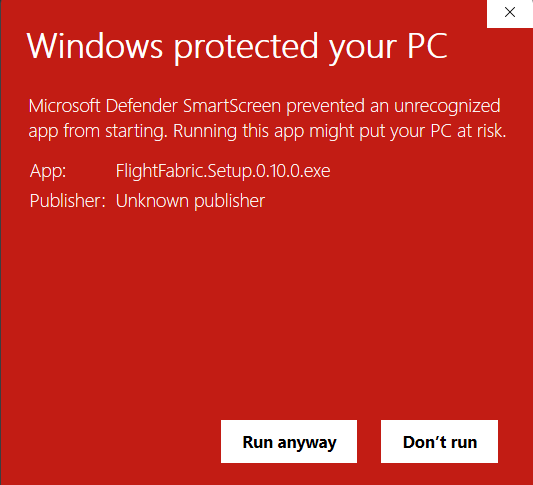
After More info, SmartScreen shows the app name, Unknown publisher and a Run anyway button. Follow the installer prompts
Review the setup information and complete the installer. If Windows asks permission to make changes, check that the prompt is for the installer you just opened. Cancel if you are unsure. Then open FlightFabric.
Load a flight in MSFS 2024
Start a flight and wait until the simulator has finished loading. FlightFabric should then show your aircraft and live flight data. If an aircraft control needs extra setup, follow the integration guide in the app.
Voice control starts switched off. To use it, follow the voice-control setup guide after the app is connected.
Optional: verify the downloaded file
Compare the installer’s SHA-256 checksum with the value beside the installer on the GitHub release page. A matching checksum confirms that your file matches that release; it does not replace a security scan.
Support FlightFabric
Help me keep building it.
I’m Yen, the developer behind FlightFabric. It is free and open source, and I put many hours into it. AI tools help me write code, but testing aircraft, fixing bugs and working through your feedback still take a lot of time.
If FlightFabric is useful to you, please consider donating or picking up an aviation sticker. Your support helps me keep improving it and adding aircraft support.
Thank you to everyone who has already helped.
Aviation stickers
Get something for your flight sim setup and support FlightFabric along the way. Browse the aviation stickers in my yenbuilds shop on Etsy.
Shop stickers on EtsyTip here, or open on Ko-fi if the panel does not load or you prefer a separate page.
Before you download
Before you get started
Is FlightFabric free?
Yes. FlightFabric is free, open source software licensed under the GNU AGPL v3. You do not need to pay or create an account to use it.
Which simulator does it support?
FlightFabric works with Microsoft Flight Simulator 2024 on Windows. MSFS 2020 and X-Plane are not currently supported.
Can I use voice control on a phone?
Voice input runs in the Windows desktop app. A phone, tablet or second computer can access on-screen controls and flight information over your trusted home network.
Does voice control send audio to the cloud?
No. Speech recognition runs locally on your PC. FlightFabric does not save, log or send microphone audio to a cloud service. Voice control is off until you enable it. Other features, such as online maps and SimBrief, use network services.
Will every control work with my aircraft?
Controls vary by aircraft, and some need an extra module or setup step. Aircraft support is still developing. Follow the integration guide in the app and check the result of a command in the cockpit.
Why does Windows show an Unknown publisher warning?
The current alpha builds are not code signed. Use the official download linked on this website. See installation help for more information.