
Free · Offline voice · Windows
MSFS 2024 voice control: setup and commands
Set a heading, change your selected altitude or switch on the lights with your voice. Here’s how to get FlightFabric working with your aircraft in Microsoft Flight Simulator 2024.
What you need
Install FlightFabric on your Windows simulator PC and connect a microphone or headset. Voice setup and testing work without MSFS; aircraft commands need a supported aircraft loaded into a flight. Voice input runs in the desktop app. You can also use on-screen aircraft controls from a phone or tablet on your trusted home network.
FlightFabric is free and does not require an account. MSFS 2024 and the aircraft you fly are separate products. MSFS 2020 and X-Plane are not currently supported.
Set up voice control in five steps
Install and open FlightFabric
Download FlightFabric for Windows and open the desktop app. You can set up and test voice before starting MSFS or loading an aircraft.
Unsigned installer: what to expectEnable voice control in Settings
Open Settings > Voice and turn on Enable voice control. During Setup, choose whether to use voice control. You can change that choice here and select Change settings to configure it. The Aircraft voice panel's Voice settings link also takes you to this section.
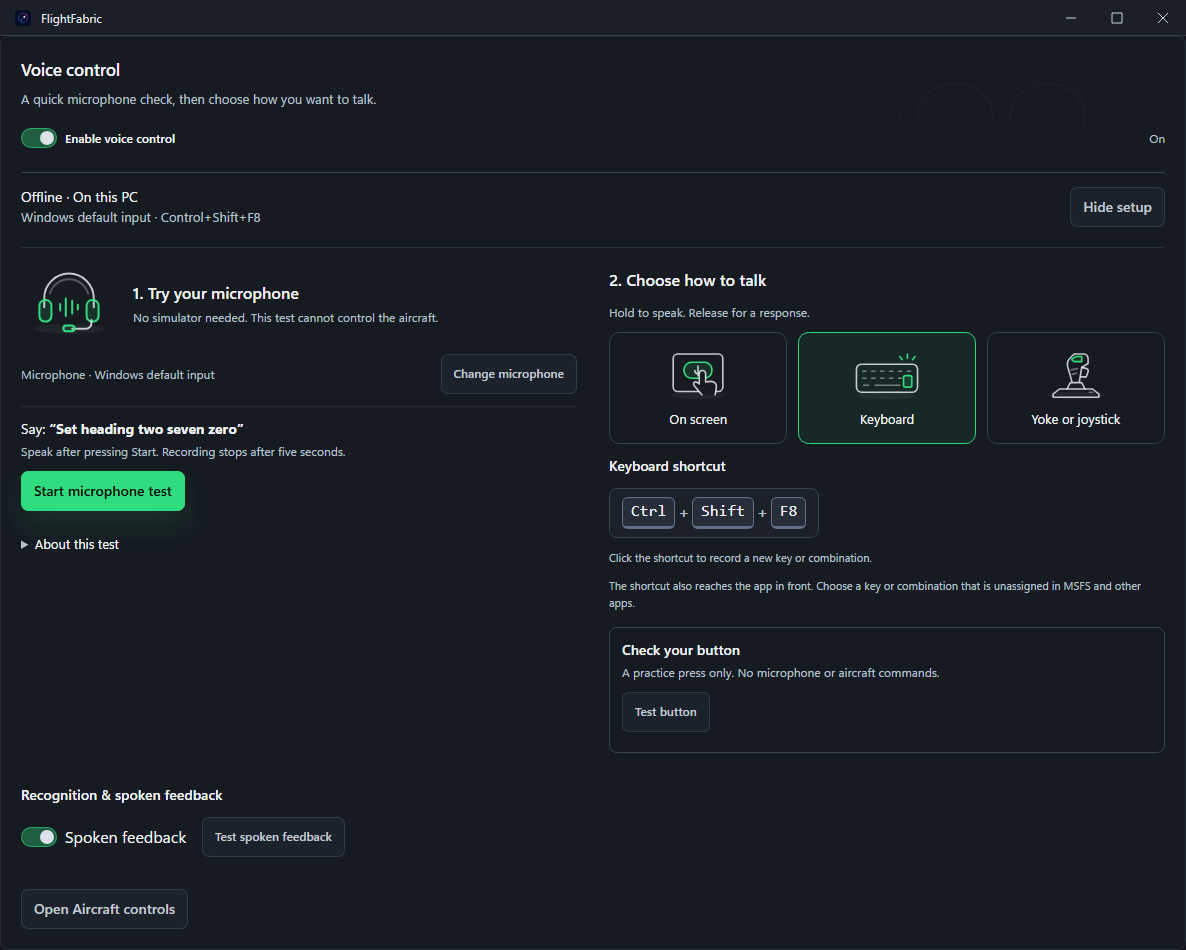
Microphone, push-to-talk and spoken feedback · FlightFabric 0.12.7 · Sample data Choose and test your microphone
Select Change microphone, then select your microphone, or leave Windows default input selected. Use Detect microphones if your device is missing, and allow microphone access when prompted. Select Start microphone test and say “Set heading two seven zero”. Watch the input level, review the recognized text and use Play recording to hear the short recording. This test sends no aircraft commands and does not need MSFS or a saved shortcut.
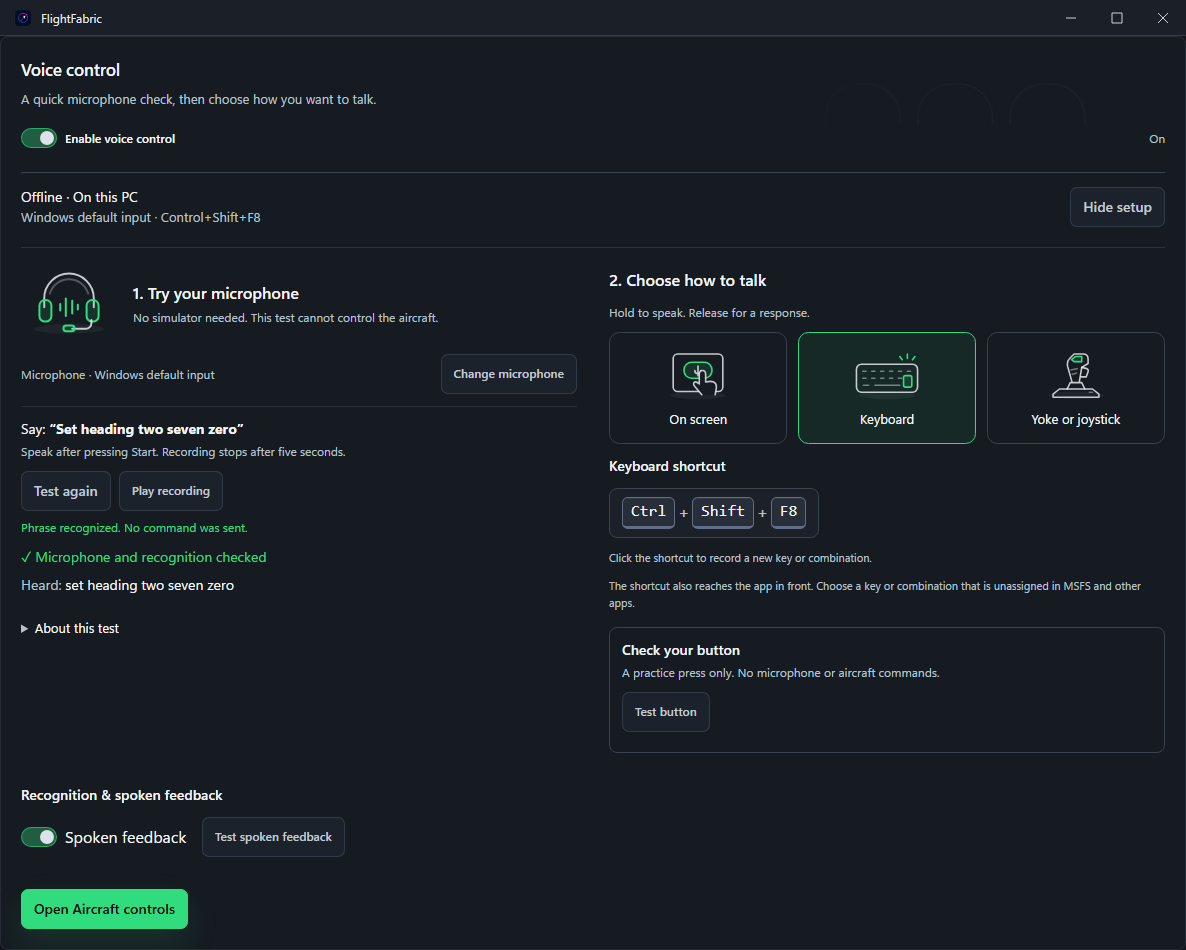
Check recognition and playback before loading a flight · FlightFabric 0.12.7 · Sample data Choose how to talk
Choose Keyboard, click the shortcut field, press a key or combination and select Save shortcut. A single modifier such as Ctrl or Alt is also supported. Choose a binding your simulator and other add-ons do not already use. To assign a controller button, choose Yoke or joystick and follow the button setup. On screen uses the Hold to talk button without a shortcut. Use Test button to practise the press and release without opening your microphone or sending an aircraft command.
Load a flight, hold, speak and check
Start a flight in MSFS 2024 and wait until FlightFabric shows your aircraft. Open Aircraft > Voice commands to see available commands and the talk button. Once voice control is ready, hold your shortcut or the talk button, wait for the listening state, say one complete command and release after the final word. Read the recognized phrase and command result, then check the aircraft display. Your global shortcut can work with FlightFabric in the background.
Voice commands to try
These examples use the PMDG 737 command set. Availability depends on the loaded aircraft and its current state. Open the Browse … voice commands button in the voice panel, or search the Aircraft controls, to find the phrases available for your aircraft. Command labels and availability may change between releases.
| Say | Action |
|---|---|
| “Set heading two seven zero” | Set selected heading to 270°. |
| “Set altitude ten thousand” | Set selected altitude to 10,000 ft. |
| “Set speed two five zero” | Set the selected airspeed target to 250 knots. |
| “Start A P U” | Request the APU start preset. |
| “Landing lights on” | Switch on the landing lights. |
| “Set takeoff lights” | Apply the aircraft's takeoff lighting preset. |
Setting a speed, heading or altitude target does not by itself engage the autopilot or select a guidance mode. The aircraft's current mode determines how it uses that target. Landing lights on changes the landing lights; Set takeoff lights applies a broader lighting preset.
Speak numbers and acronyms clearly
Use direct phrases such as “Set heading two seven zero”. Say acronyms as individual letters: “A P U” is “ay pee you”. Finish the last word or letter before releasing push-to-talk. Use one command per press.
Which aircraft support voice commands?
FlightFabric has detailed controls and voice commands for these aircraft families:
- PMDG Boeing 737.
- PMDG Boeing 777.
- Fenix Airbus A32X.
- FlyByWire A32NX.
- iniBuilds Airbus A350.
Controls vary between aircraft. Follow any integration setup instructions shown in the Aircraft page; some controls require an additional module or aircraft integration setup. The live command browser is the reference for what you can use in the aircraft currently loaded.
Aircraft support is still developing, and not every command has been verified in a live simulator session. Check command availability in the app and verify the result in the cockpit.
If voice control is not working
The talk button is unavailable
Check that voice control is enabled, FlightFabric is connected to MSFS, and a flight is fully loaded. Commands are unavailable while the simulator is disconnected, in menus or loading. Read any status message in the voice panel and check the Aircraft page for integration requirements.
Your microphone is missing or picks up no speech
Open Settings > Voice, choose the correct input, use Detect microphones and Start microphone test, and check Windows microphone permissions and your headset's mute switch. If you reconnect a headset, check that the selected microphone is still available.
The button works but the key combination does not
Open Settings > Voice and confirm a shortcut is saved and registered. If registration failed, another program may already own it; choose a different combination such as Ctrl + Alt + V. The on-screen Hold to talk button is available as an alternative when voice control is otherwise ready.
Speech is recognised incorrectly or no command matches
Check the displayed transcript, then use the exact phrase shown for your aircraft in the command browser. Speak at a steady pace and keep push-to-talk held until you finish. Check the microphone input and reduce background audio if words are being lost.
A command is recognised but the aircraft does not change
Read the command result and check the aircraft's controls and guidance mode. Recognition alone does not confirm a cockpit change. If the app reports a failure or asks you to verify the aircraft state, inspect the cockpit before trying the command again.
Does voice control work offline?
Yes. The installed desktop app processes voice commands locally on your PC. It does not send microphone audio to a cloud speech service, and no account is required.
Offline voice recognition does not mean the whole app works offline: features such as online maps and SimBrief use network services.
When voice control is off, FlightFabric does not listen for commands or check for microphones. During push-to-talk and voice testing, audio is processed in memory. After release, the microphone stays active briefly to capture the end of your speech, then closes. Microphone audio is not saved or logged. A voice-test recording is kept in memory for playback and cleared when you leave Settings.