
Aircraft support · MSFS 2024 · Free
iniBuilds A320neo V2 and A321LR in FlightFabric: experimental controls and live data
FlightFabric’s support for the iniBuilds A320neo V2 and A321LR is experimental: 27 voice commands, 4 presets and 42 controls, plus 44 live cockpit values, with the app’s own labels quoted below. It is not on the homepage’s supported list yet. Expect gaps, and check every result in the cockpit.
- 2Variants covered
- 27Voice commands
- 4Presets
- 42Cockpit controls
- 44Live cockpit values
Aircraft covered
Load any of these in MSFS 2024 and FlightFabric switches to its cockpit layout and control set by itself. There is nothing to configure in the app.
- Microsoft / iniBuilds Airbus A320neo V2
- Microsoft / iniBuilds Airbus A321LR
Vendor: Microsoft / iniBuilds. Other Airbus A320neo V2 / A321LR products from other developers are not covered by this page.
How the app labels it: Standard controls Experimental
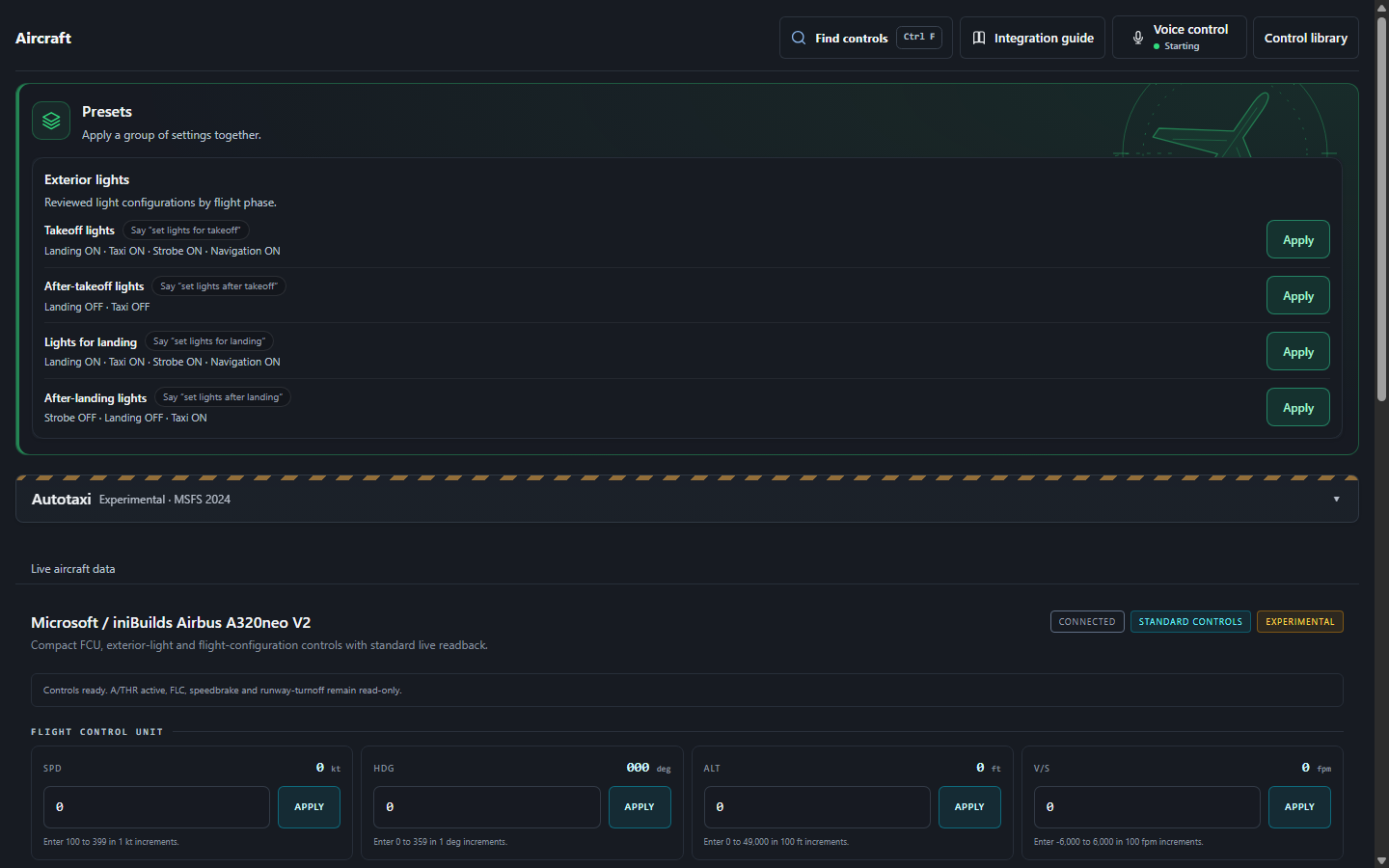
Its Aircraft page describes the integration as “Compact FCU, exterior-light and flight-configuration controls with standard live readback.”
When connected it reports: “Controls ready. A/THR active, FLC, speedbrake and runway-turnoff remain read-only.”
What you need
- FlightFabric 0.10.2 on the Windows PC that runs Microsoft Flight Simulator 2024, with one of the aircraft installed. MSFS and the aircraft are separate products; FlightFabric is free and needs no account.
- Voice control is optional and runs offline in the desktop app; the voice-control guide covers microphone and push-to-talk setup in five steps.
Try saying
Hold push-to-talk, say one of these, and release. Numbers are spoken as digits, so 270 is “two seven zero”. Each phrase below is accepted by FlightFabric 0.10.2 for the iniBuilds A320neo V2 and A321LR.
Every command
The full list, grouped by cockpit system. Every control here is also available from the Aircraft page and its control library, so you can tap it on a tablet instead of saying it. Setting a target such as a heading does not engage the autopilot; the aircraft’s current mode decides how it uses the target.
Flight guidance
| Control | Say | Value |
|---|---|---|
| Selected heading | “set heading value”or 1 other phrasing | 0–359 deg · step 1 |
| Selected altitude | “set altitude value”or 3 other phrasings | 0–49,000 ft · step 100 |
| Selected speed | “set speed value”or 1 other phrasing | 100–399 kt · step 1 |
| Selected vertical speed | “set vertical speed value”or 1 other phrasing | -6,000–6,000 ft/min · step 100 |
| Autopilot master | “autopilot value” | On / off |
| Speed hold | “speed hold value”or 1 other phrasing | On / off |
| Heading hold | “heading hold value” | On / off |
| Altitude hold | “altitude hold value” | On / off |
| Vertical speed mode | “vertical speed mode value” | On / off |
| Approach mode | “approach mode value”or 2 other phrasings | On / off |
| Flight director | “flight director value”or 1 other phrasing | On / off |
| Autothrottle arm | “autothrottle arm value”or 1 other phrasing | On / off |
| NAV hold | “nav hold value”or 1 other phrasing | On / off |
Flight controls
| Control | Say | Value |
|---|---|---|
| Landing gear | “gear value”or 1 other phrasing | up · down |
| Flaps one detent | “flaps value one”or 1 other phrasing | increase · decrease |
| Parking brake | “parking brake value”or 1 other phrasing | Set / release |
Exterior lights
| Control | Say | Value |
|---|---|---|
| Nav lights | “nav lights value”or 7 other phrasings | On / off |
| Beacon lights | “beacon lights value”or 7 other phrasings | On / off |
| Strobe lights | “strobe lights value”or 7 other phrasings | On / off |
| Landing lights | “landing lights value”or 9 other phrasings | On / off |
| Taxi lights | “taxi lights value”or 9 other phrasings | On / off |
| Wing lights | “wing lights value”or 1 other phrasing | On / off |
| Logo lights | “logo lights value”or 1 other phrasing | On / off |
Presets
A preset works through several switches in order and reports each step, the way a pilot monitoring runs a flow. It stops, rather than retrying, when the aircraft does not confirm a step.
Presets
| Control | Say | Value |
|---|---|---|
| Takeoff lightsLanding ON · Taxi ON · Strobe ON · Navigation ON | “set lights for takeoff”or 7 other phrasings | One action |
| After-takeoff lightsLanding OFF · Taxi OFF | “set lights after takeoff”or 10 other phrasings | One action |
| Lights for landingLanding ON · Taxi ON · Strobe ON · Navigation ON | “set lights for landing”or 5 other phrasings | One action |
| After-landing lightsStrobe OFF · Landing OFF · Taxi ON | “set lights after landing”or 5 other phrasings | One action |
Live cockpit data
The Aircraft page shows these 44 values as the aircraft reports them, next to the controls that change them. What you see is the switch position in the cockpit, not what the app last asked for.
Flight guidance 11
- AP master
- Flight director
- Autothrottle active
- Autothrottle armed
- Speed hold
- Heading hold
- NAV hold
- Altitude hold
- Vertical speed hold
- Flight level change
- Approach hold
Exterior lights 8
- Strobe
- Beacon
- NAV
- Logo
- Wing
- Landing
- Taxi
- Runway turnoff
Aircraft systems 12
- Engine 1 N1
- Engine 2 N1
- Engine 1 running
- Engine 2 running
- Fuel total pct
- Fuel total weight lbs
- Gross weight lbs
- Cabin altitude ft
- Cabin vertical speed fpm
- Cabin delta pressure psi
- Outside air temperature C
- Mach
Controls 9
- Flaps percent
- Flaps index
- Flap angle deg
- Speedbrake percent
- Gear handle down
- Gear nose pct
- Gear left pct
- Gear right pct
- Parking brake
Fcu 4
- Speed kts
- Heading deg
- Altitude ft
- Vertical speed fpm
Verification status
All 42 aircraft-specific controls on this page are mapped from standard simulator events. The project has not yet confirmed them one by one in a live simulator session, so the app lists each of them as awaiting verification. That is a statement about the project’s own testing, not a known fault: wherever the aircraft exposes the switch state, the app reads it back before reporting success.
Every control is guarded the same way: FlightFabric sends it once, waits for the aircraft to report the new switch position, and shows a failure instead of retrying. A few momentary controls are confirmed only by the simulator accepting the command. If a control does not respond on your installation, please report it on GitHub with the aircraft version so it can be fixed.